Add collaborators
Add collaborating organisations to your project to share pseudonymised data securely. Collaboration projects allow multiple organisations to access project data based on permissions you set.
If you haven't created your project yet, see Create a project for the complete guide, including how to add collaborators during project creation. This guide focuses on adding collaborators to existing projects.
In this guide
Before you begin
- Ensure your project is set up as an organisation project
- Obtain the organisation key from each partner organisation you want to add
- Decide whether each collaborator needs reverse permissions
- Verify that your project supports the type of collaboration you need
- Ensure no requests are currently being submitted or approved for the project, as you cannot edit collaborators during that time
Organisation keys are unique identifiers (UUIDs) that partners can find on their My Organization page. Request keys through secure channels and verify with partners before adding them.
Add collaborators to a project
-
Go to Projects and open the project where you want to add collaborators. Or see: Create a project.
-
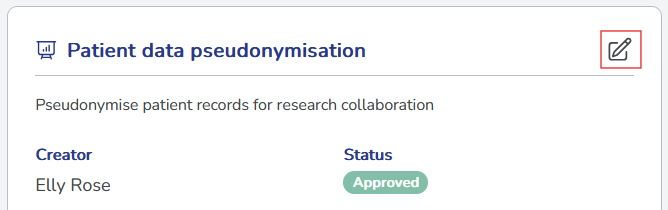
Select the Edit button (pencil icon) in the project card.
-
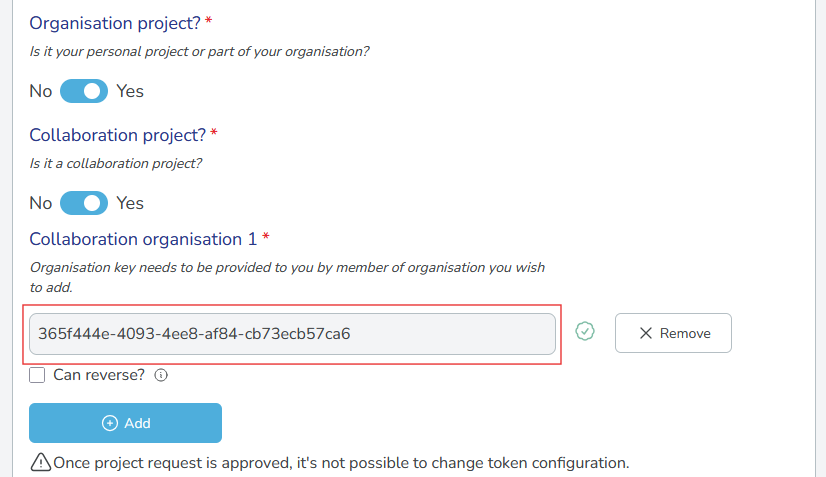
Select Yes for Organisation project. The Collaboration project option appears.
-
Select Yes for Collaboration project, and select Add to add a collaborating organisations.
-
Enter the
organisation keyprovided by your partner organisation. The system validates the key automatically, and a green check icon appears if the key is valid. If the key is invalid, an error message appears. Contact your partner to verify the key. -
Select the Can reverse checkbox if the collaborator needs to reverse pseudonymised data. Leave unchecked for standard collaboration (pseudonymised data access only). This only works for reversible projects, which is a setting you select when you create a project.
-
-
To add multiple collaborators, select Add again and repeat step 4 for each organisation.
-
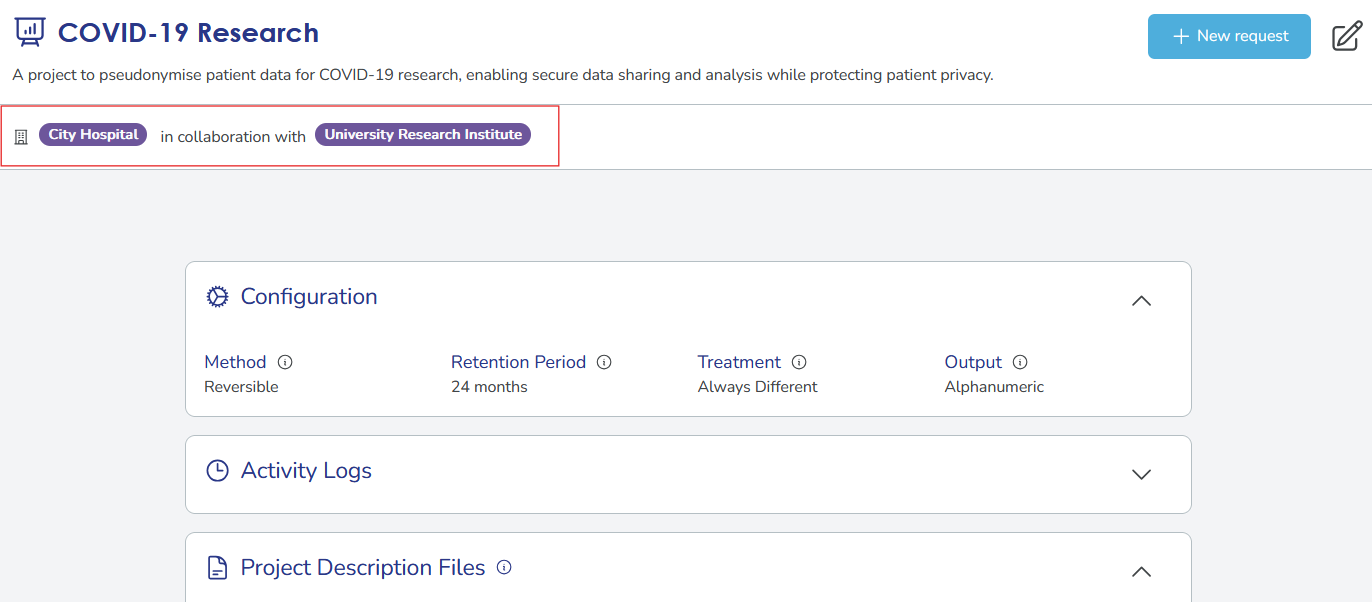
Select Save project to update the project with the new collaborators. The project appears with the names of the collaborating organisations on top of the project page.
Once you add a collaborator to a project, you cannot remove them. Carefully verify organisation keys before saving. If you need to change collaborators, you must create a new project.
Share your organisation key
To let other organisations add you as a collaborator, share your organisation key with them:
-
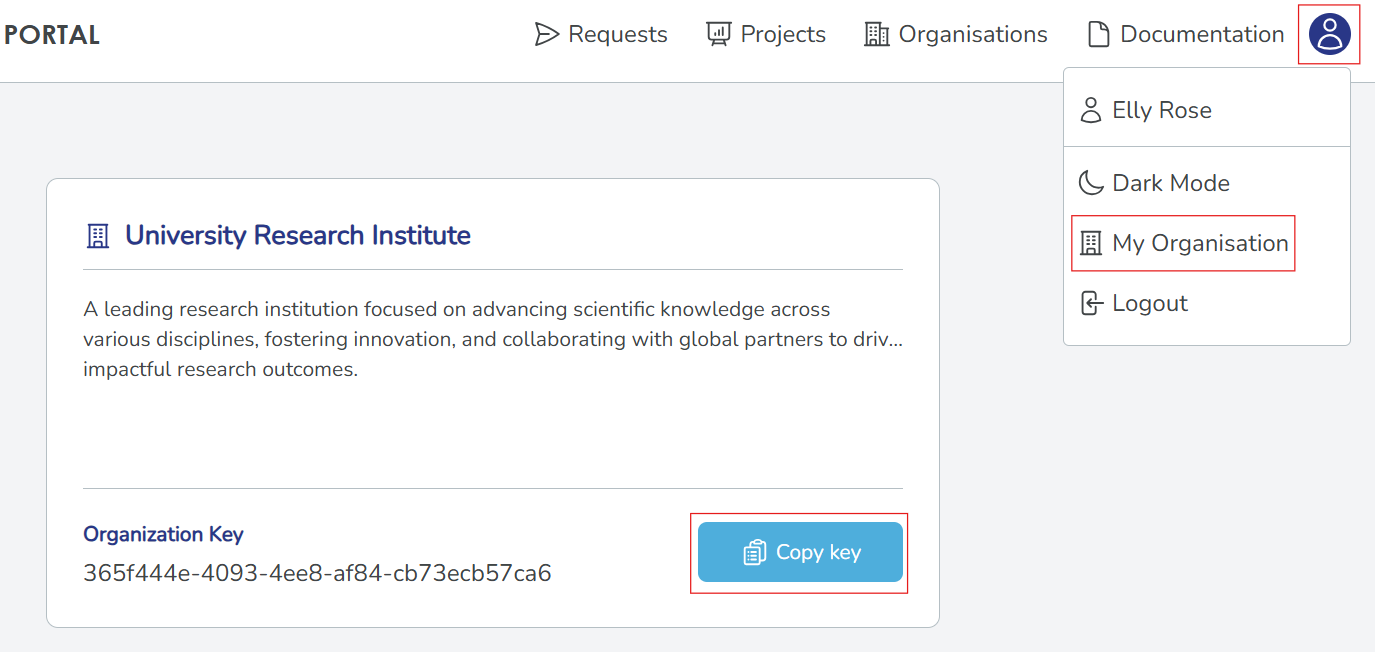
Go to Organisation in the main menu (this opens your organisation's page).
-
Locate your Organization Key displayed at the bottom of the organisation card.
-
Select Copy key to copy it to your clipboard.
-
Share the key with your partner through a secure channel:
- Encrypted email
- Secure messaging platform
- Verified communication channel
Always verify organisation keys through secure channels before sharing or using them. Adding an incorrect key could expose data to unintended parties. Confirm keys with partners verbally or through verified communication methods.